Skip to content
Fave Bridge
A little more clarity

From a favorite interest to a little daily practice

See how to try Fave Bridge, create a family account and build a small learning plan

See the steps
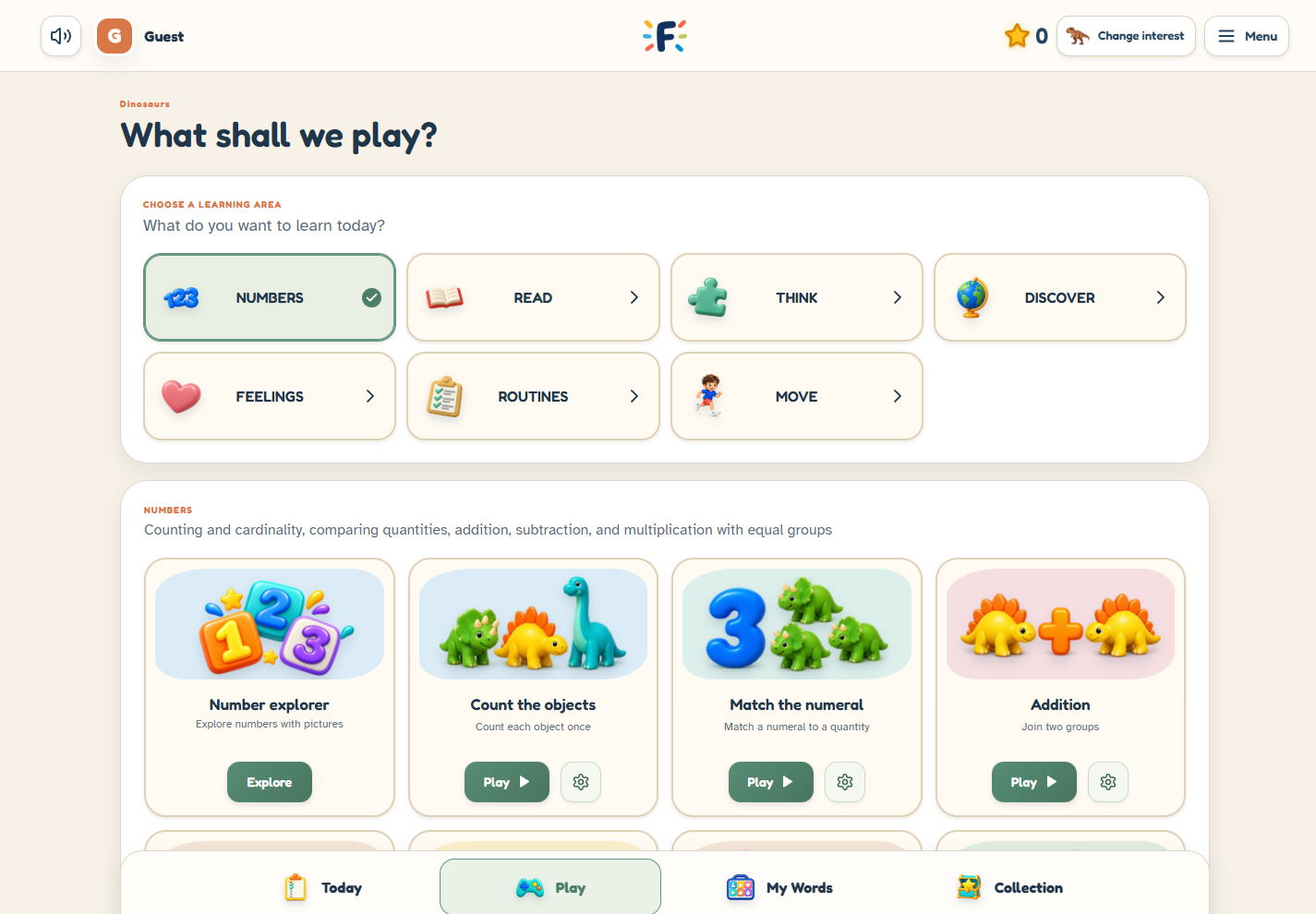
Fave Bridge game library showing seven learning areas and number activities
Actual platform · guest example
From your first visit to saved practice

Your family’s route through Fave Bridge

  1. 01

    Begin in the guest space

    Explore without an account. When you want saved practice, create a family account and complete the emailed permission setup

    Guest or family account?
  2. 02

    Choose a familiar interest

    Pick one of eight themes for supported games. Choose Picture or Picture + voice, known letters, counting range and Calm mode in the parent dashboard. Choose the starting level on each game

    Find their interest
  3. 03

    Try a game or a small plan

    Choose an activity and level, or bring up to five activities together in Today’s Plan. Leave room to pause or explore

    See how daily planning works
  4. 04

    Follow the recorded practice

    Return through Parent sign-in to review practice and adjust the next visit. Children use their own PIN for saved play

    Explore parent controls

A few practical details

Fave Bridge runs in a web browser and uses recorded English speech. Audio may need an initial tap to play. Guest exploration does not require a payment

Details to keep in mind

The games are educational activities, not a diagnosis or a promise of particular developmental outcomes. Explore together and choose what feels appropriate
The product, in real screens

Choose a theme. Play. Follow their practice

Follow the child’s experience, from familiar pictures to a daily plan. Explore the full parent dashboard on the Parent Controls page

01

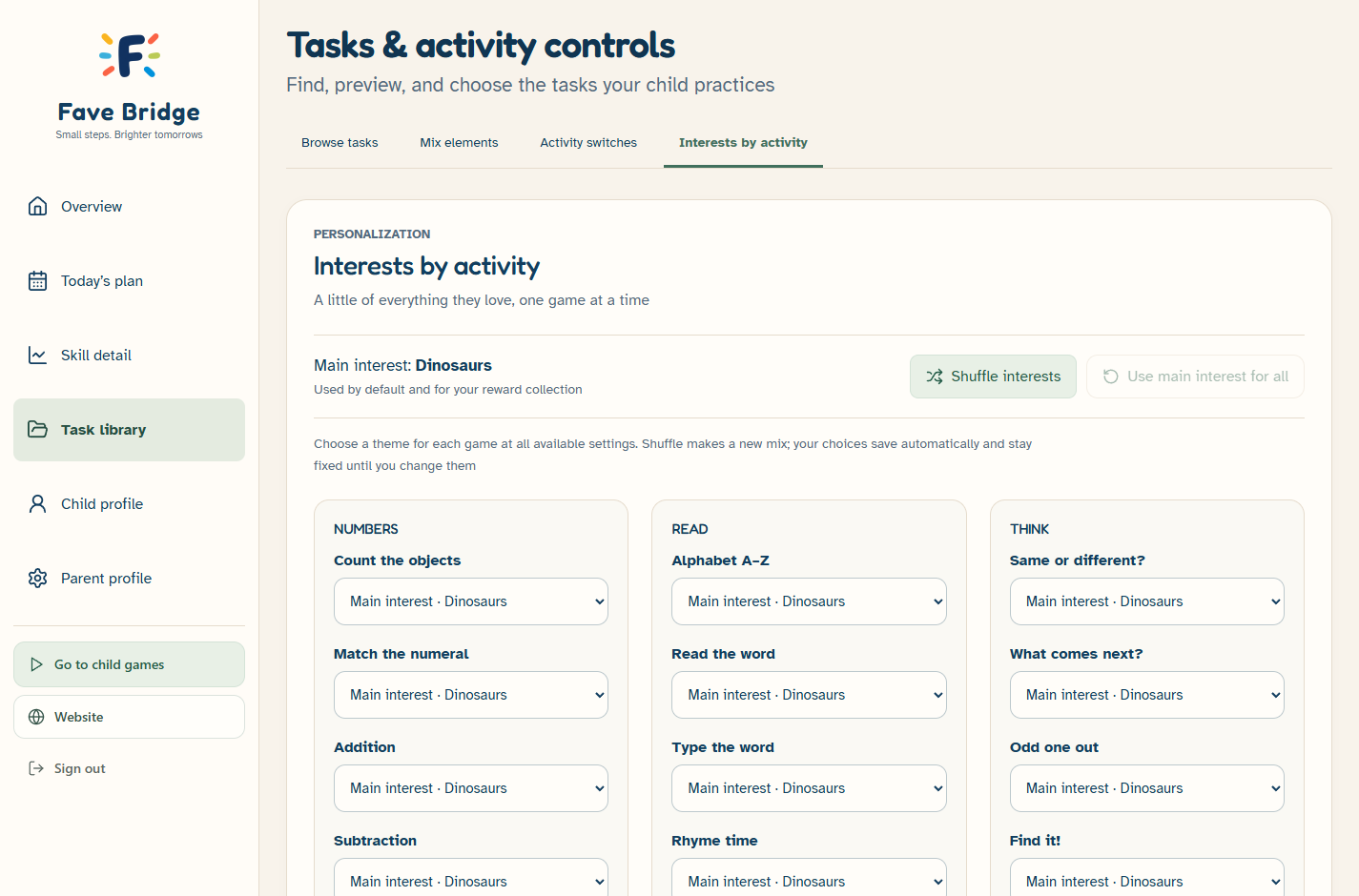
Different games. Familiar favorites

Keep one main interest or choose a separate theme for each supported activity

  • Main interest stays the default
  • Separate choices for supported games
  • Numbers, Read and Think, except Fix the Bridge
Parent dashboard: Themes by game. Synthetic demo example
Parent demo account · actual platform
02

Choose a learning area

Seven areas bring numbers, reading, thinking and everyday skills into one place

  • All learning games are included in Free
  • Choose an activity and a level
  • Return to the library to explore something else
Child learning space: Choose a learning area. Synthetic demo example
Guest example · actual platform
03

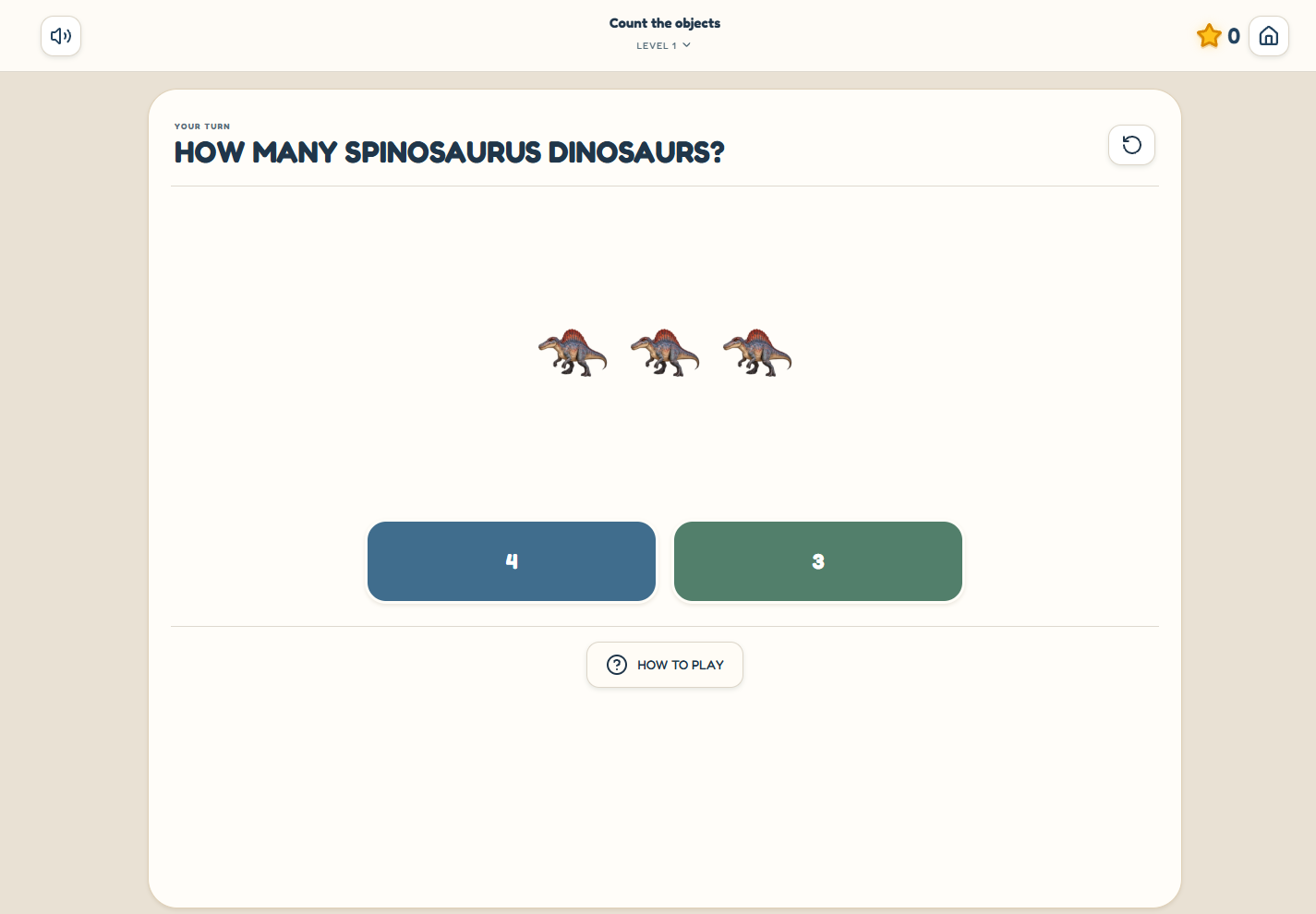
Try a clear, visual activity

A short prompt, familiar pictures and clear answer choices. Here, dinosaurs become counting companions

  • Listen to recorded English instructions
  • Choose from the game’s available levels
  • Use familiar interests in supported activities
Child learning space: Try a clear, visual activity. Synthetic demo example
Guest example · actual platform
04

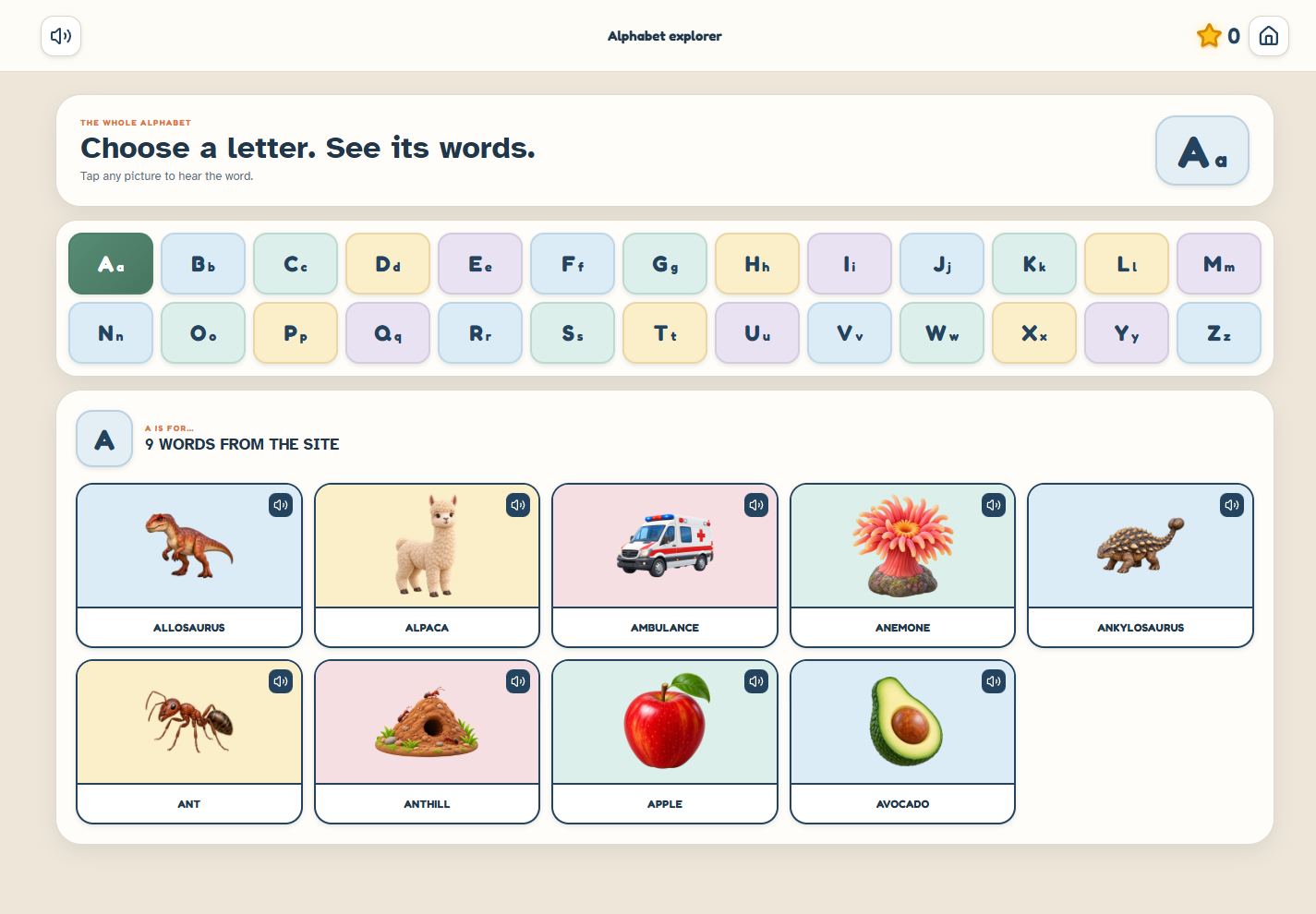
Explore letters and words

Browse the alphabet and tap picture words to hear their recorded names

  • Uppercase and lowercase letters
  • Picture-word associations
  • Self-paced exploration
Child learning space: Explore letters and words. Synthetic demo example
Guest example · actual platform
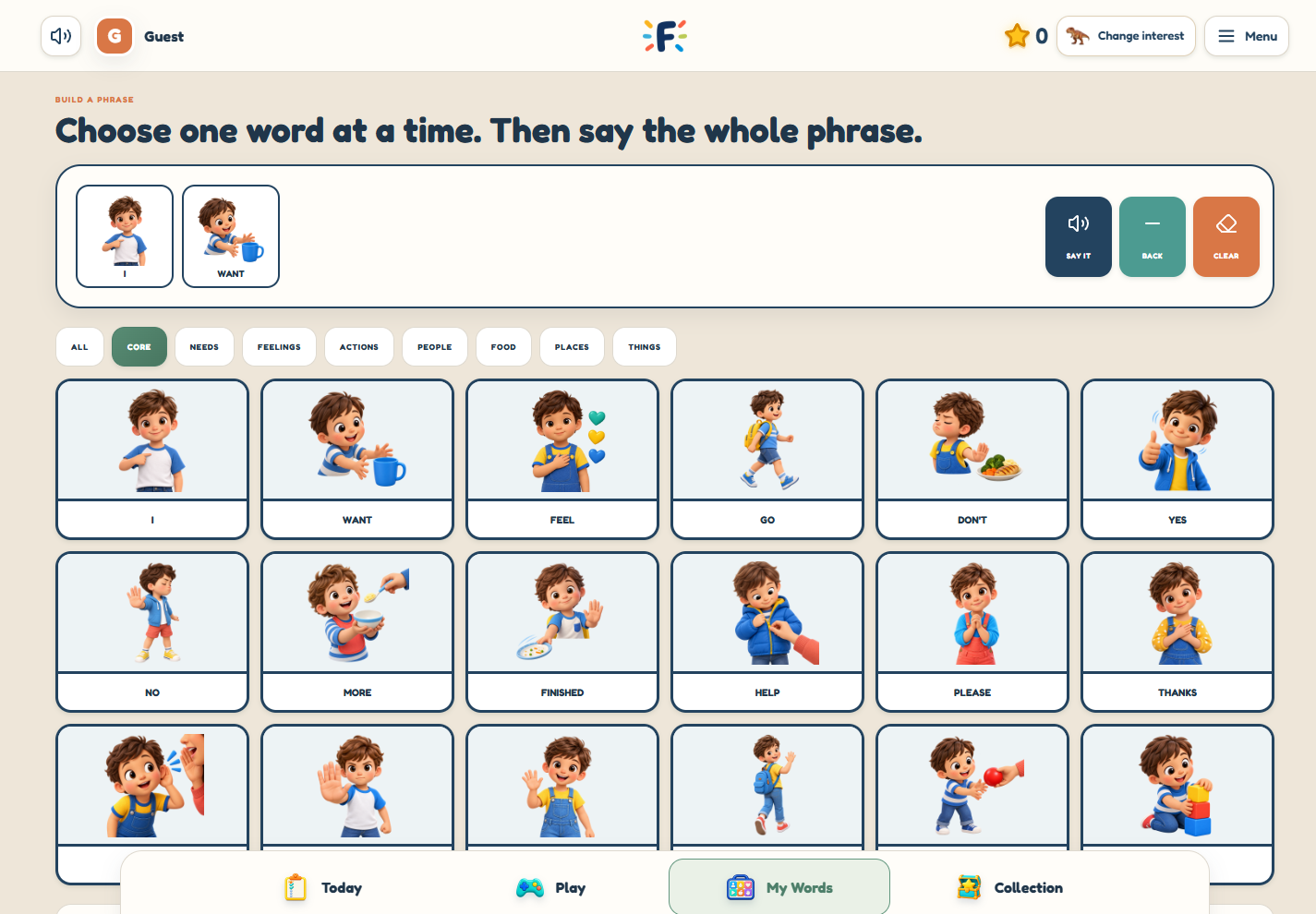
05

Make room for communication

My Words is a separate picture-based communication space: choose words, build a phrase and hear it spoken

  • Browse word categories
  • Build and clear a phrase
  • Use recorded English speech
Child learning space: Make room for communication. Synthetic demo example
Guest example · actual platform
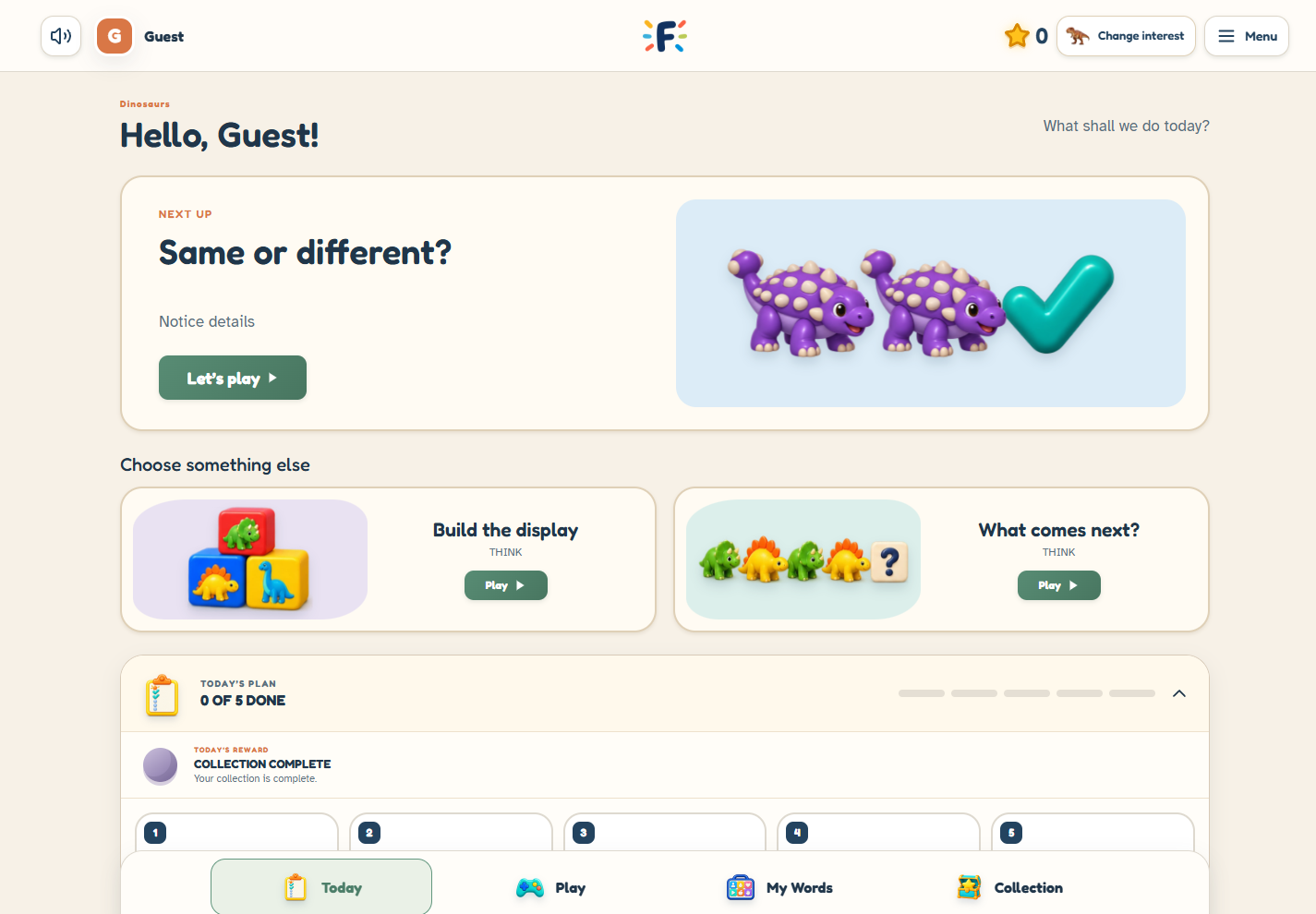
06

Follow a manageable daily plan

Today gives the child a next activity and a small plan. Guest examples stay separate from saved family practice

  • A clear next activity
  • Room to explore other games
  • Daily-plan rewards and interest collections
Child learning space: Follow a manageable daily plan. Synthetic demo example
Guest example · actual platform
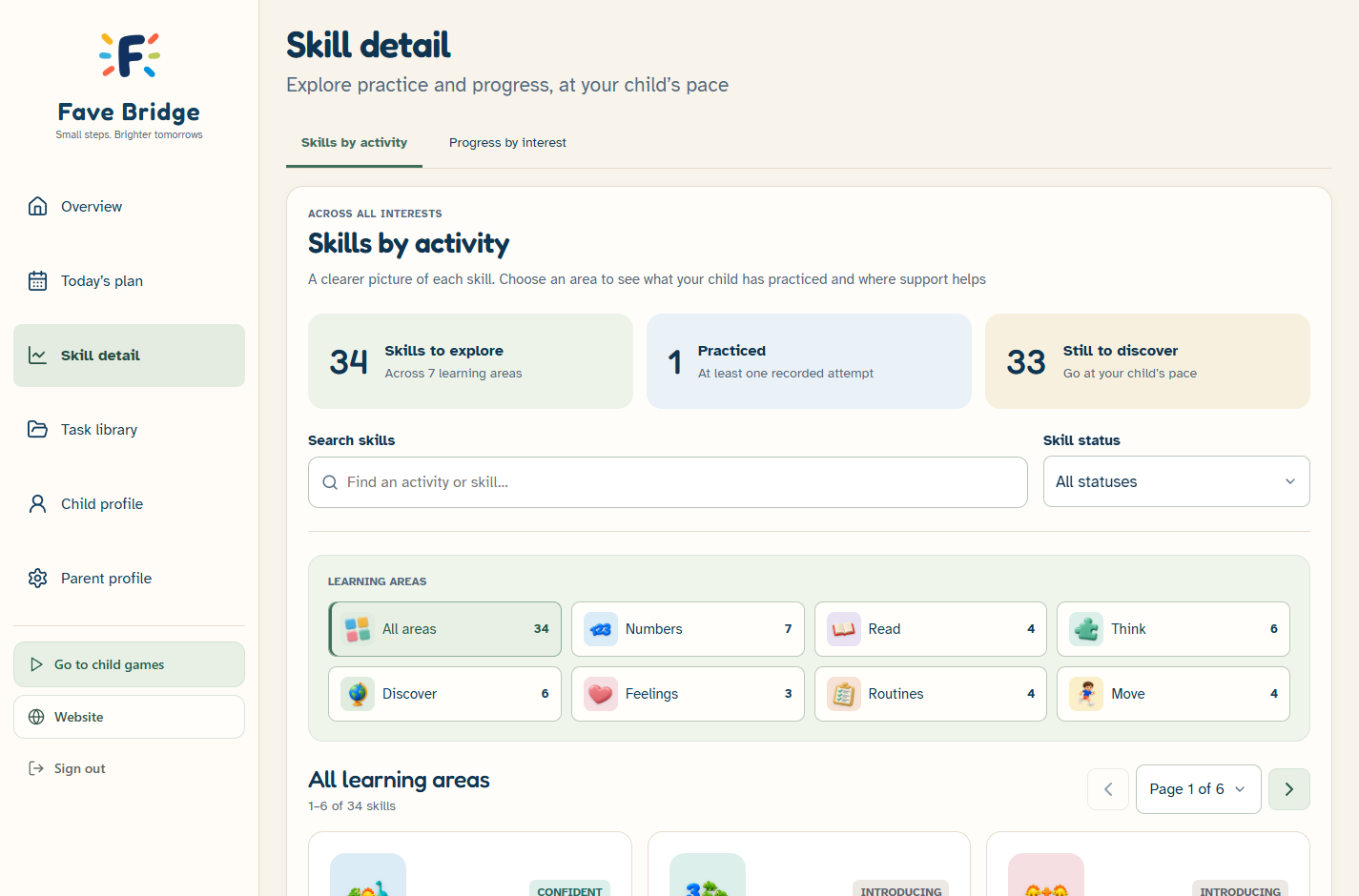
07

Understand what they practiced

See activity coverage, levels tried and recorded support use. These are practice records, not an assessment

  • Filter by area and practice status
  • Review individual activity records
  • Distinguish explored and untried skills
Parent dashboard: Skill detail. Synthetic demo example
Parent demo account · actual platform
Explore all seven parent tools