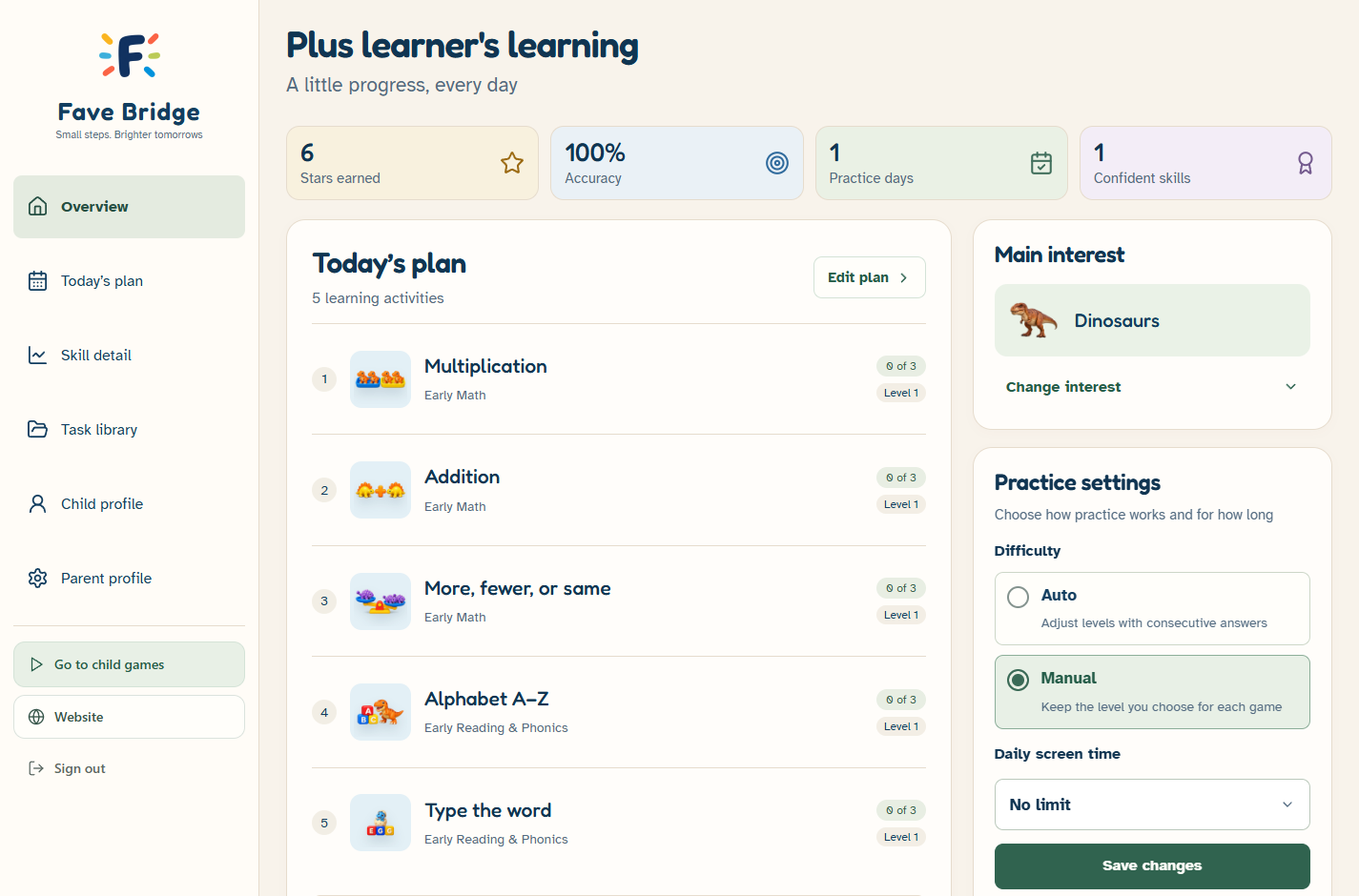
See what the activity actually asks
A title such as Patterns or Reading gives a broad idea. A task preview shows the actual kind of choice your child will be asked to make. The Plus task library offers a closer look at activities and levels before you choose what is available
You can browse and filter the library, open a task preview and inspect the example. Some tasks belong to generated families, so the solution shown relates to that particular example
Previewing is different from child practice
A parent preview does not record a result as the child’s learning attempt. That distinction lets you inspect the activity without adding practice to their history
Use the preview to understand the instruction, choices and interaction. It is not a way to test whether your child is ready without exploring the task together
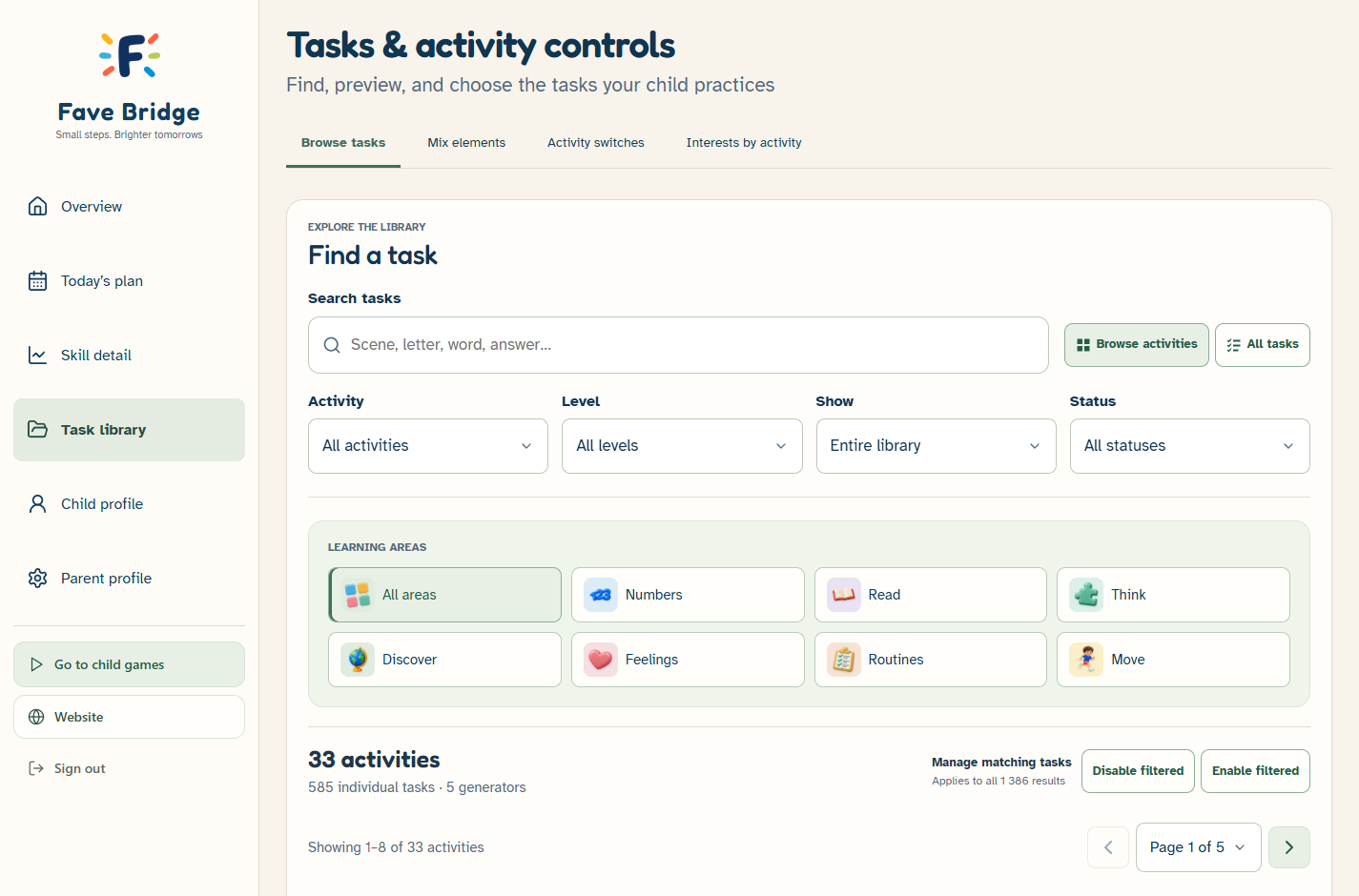
Adjust availability thoughtfully
Plus includes controls for excluding individual tasks and switching activities on or off. If you do not want an activity in the available set, use its parent control rather than asking the child to navigate around it
An exclusion changes which task is available; an activity switch changes the availability of the whole game. Choose the narrower control when you only want to leave out one example
Different interests for different games
Plus also lets parents assign themes by activity. A main interest can guide the collection while another supported game uses a different theme
Personalization applies to Numbers, Read and Think except Fix the Bridge. Other learning areas and My Words retain authored content. Choosing a theme does not rewrite every instruction or every scene
Decide whether the extra control is useful
You do not need Plus to try the learning games. Free includes the games, a custom daily plan, main interest and learning support settings
Choose Plus if the additional preview, selection, detailed progress, adaptive level or time controls are useful to your family. Monthly and Annual offer the same Plus feature set
What to look for in a preview
- Read or listen to the actual instruction
- Inspect the pictures and response options
- Check the example level and solution
- Decide whether to keep the task available or use the exclusion control
Sources & further reading
Published by Fave Bridge about its own product. External sources do not imply endorsement. Our editorial approach